

This post will guide how to install and configure Alist. It was created to help post 8 have a file-sharing section. I used to have a file browser but I already kicked it out.
Install Alist
This install command is for x86_64 CPUs. If you use ARM or other architectures, go here to download it.
wget https://github.com/AlistGo/alist/releases/download/v3.53.0/alist-linux-amd64.tar.gz
tar -xvzf alist-linux-amd64.tar.gz
chmod +x alist
./alist server
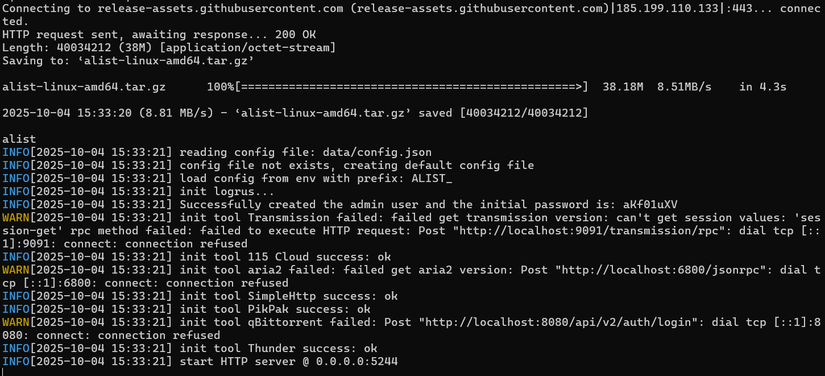
Then open another window or another SSH session to set a new password
./alist admin set NEW_PASSWORD
Configure Alist
Then log in
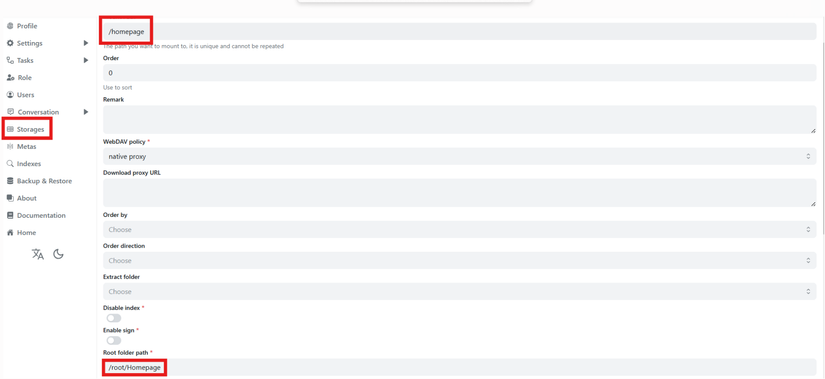
Pay attention to Root folder path; this is the directory path on your server that you will share.
The mount path is what you’ll see in Alist
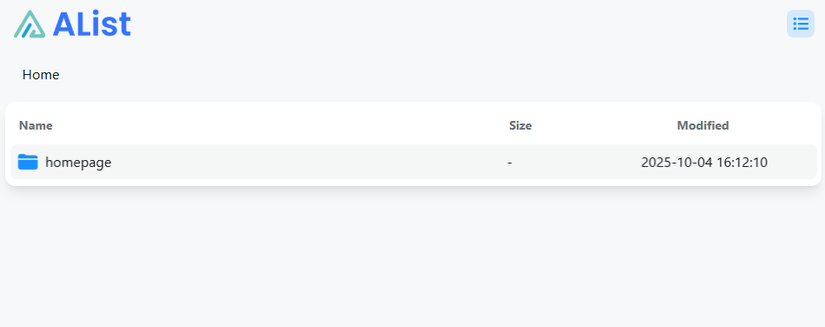
After basic storage is set up, enable the guest user for everyone to access
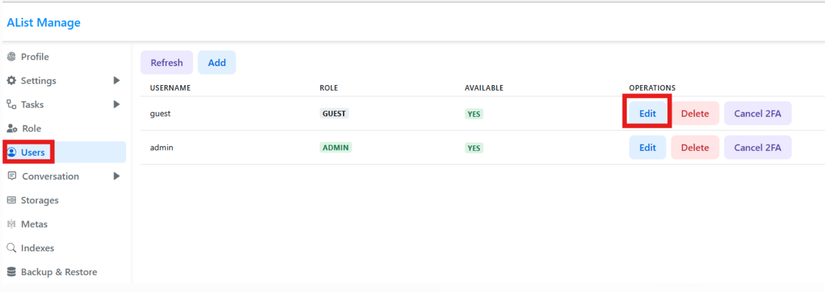
Go to User -> Guest -> Edit
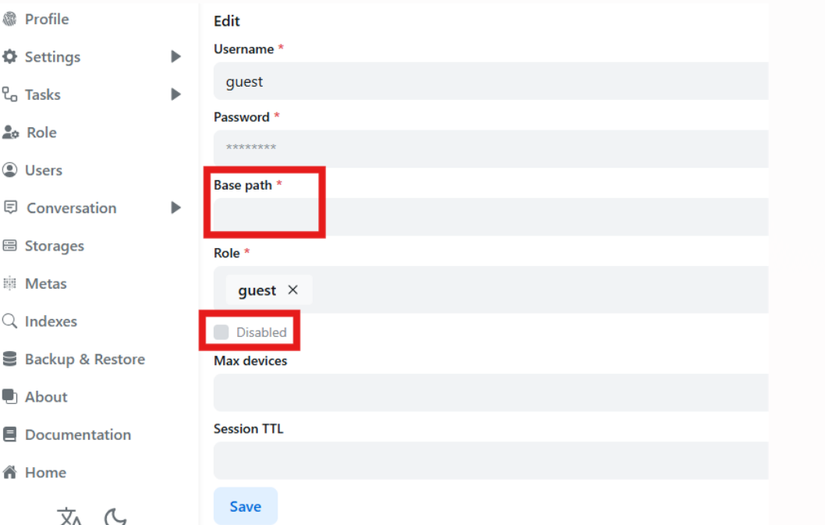
Make sure the red Disable toggle is unticked. For base path, I only share the Homepage folder so I didn’t change it.
Access setup
Finish with basic Cloudflared setup and you’re done



Comments
Join the conversation
Leave a comment
No comments yet
Be the first to share your thoughts!