

The PVE Community script works pretty well, but there was one snag. It sets the IP via the DHCP server, and I don’t like that.
To fix this there are two ways.
Way 1: go into my router and bind the IP to the MAC address
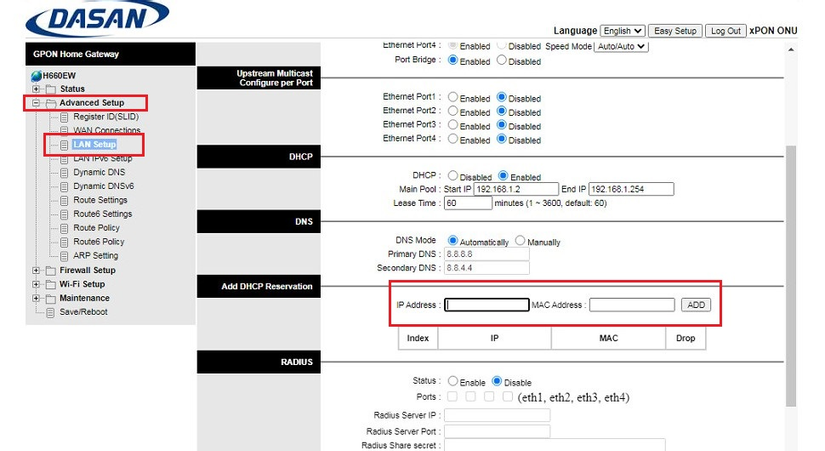
Way 2: change the IP in Proxmox to Static
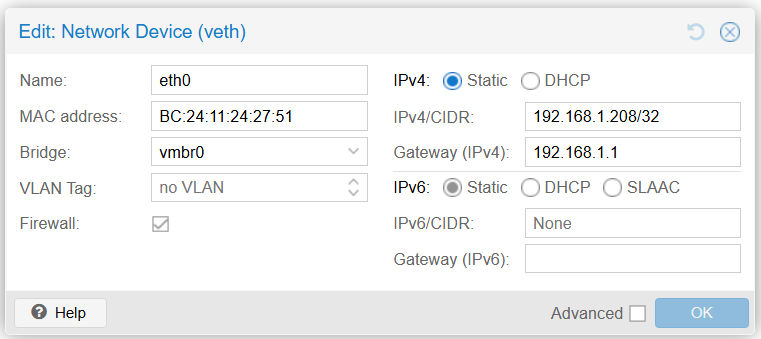
I wanted to try the newer approach so I picked way 2. And then a whole bunch of issues followed. I created the problem and had to solve it myself.
Portainer from PVE Community stops working after switching to Static IP
Use the Proxmox Helper Script from post 5
Click Click, Enter Yes Yes Y Y. Done, Portainer is running
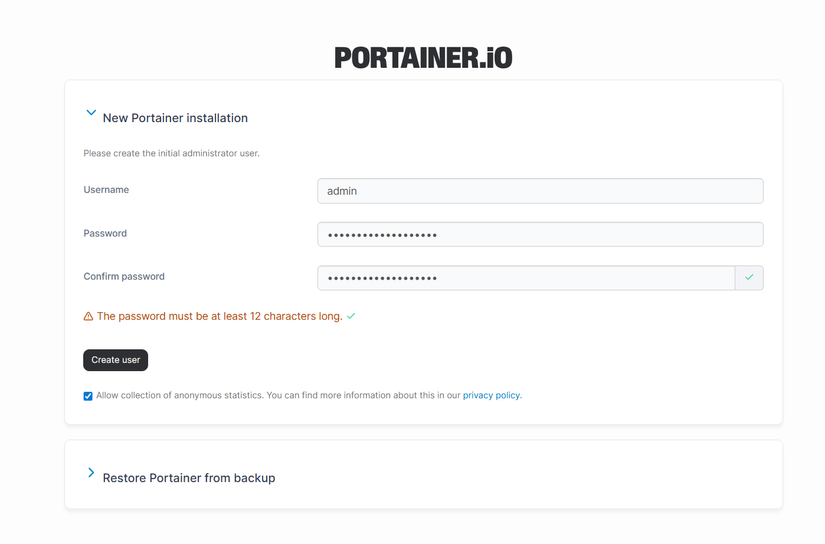
But I don’t like the pre-bound IP 192.168.1.5. So I changed it to 192.168.1.210 to manage it more easily
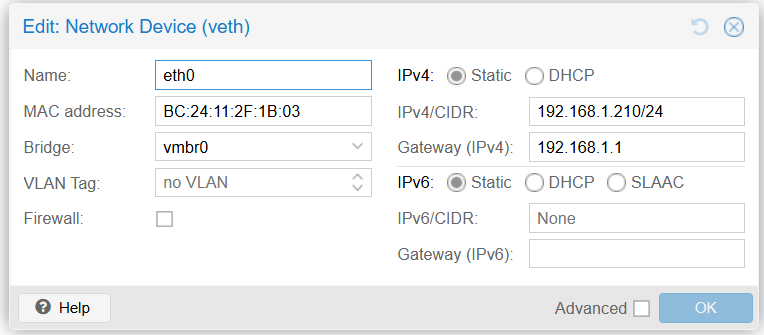
And then I couldn’t get in anymore
There was basically no solution because I tried a lot: reset, create a new LXC and redo it, delete Portainer and make a new Portainer. And strangely it was fixed when I tried once again while writing this post??? Pretty weird, because everything I did was the same. But I can’t let that just fade away. At least I need to know what made me mad all this time. And I still don’t know why. When I redid it, it was the same… Then suddenly it worked again
Solution, reason
Found two days after writing this post, while reconfiguring the gethomepage site for my homelab. The problem was the network config using subnet mask /32, so it could only talk to itself and the gateway 192.168.1.1. After changing to subnet mask /24, the subnet means it can talk within 192.168.1.1 -> 192.168.1.254, aka the 192.168.1.0/24 range
Migrate Docker into the Portainer LXC
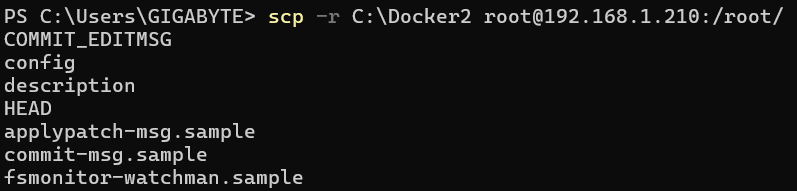
I used SCP to move my old Docker compose folder over. But first, change the LXC password; the install script doesn’t set one at all. Pretty annoying.
passwd root
Then I remembered: why bother typing a password every time, so I imported my ssh key instead.
nano /root/.ssh/authorized_keys
Also disabled password SSH login
sed -i -E 's/#?PasswordAuthentication yes/PasswordAuthentication no/' /etc/ssh/sshd_config
systemctl restart sshd || systemctl restart ssh
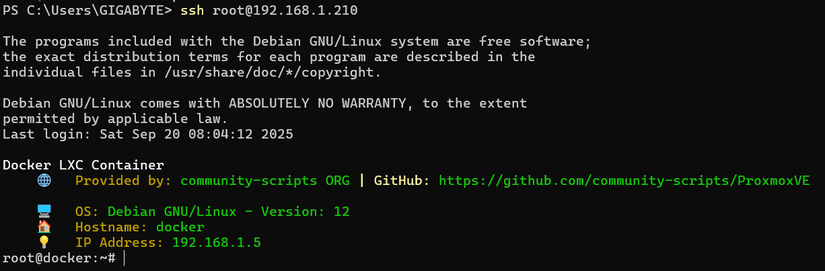
Now SSH works nicely (the legacy 192.168.1.5 from the beginning still exists)
Use SCP to copy Docker Compose files in
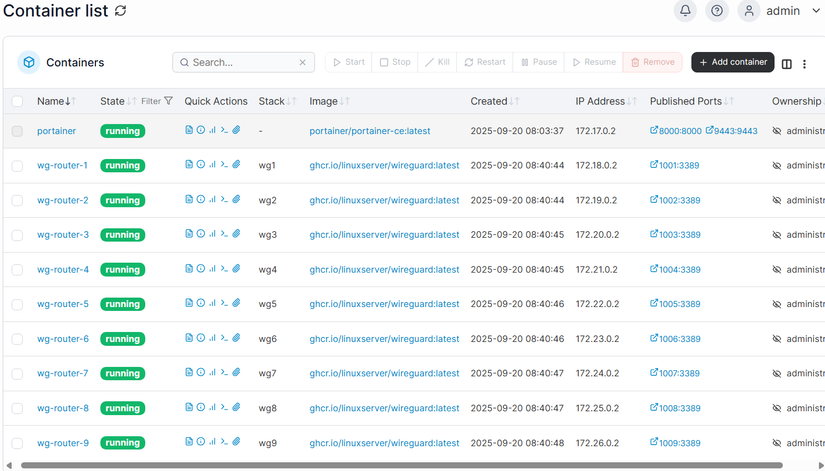
Result



Comments
Join the conversation
Leave a comment
No comments yet
Be the first to share your thoughts!