

1. Why Windows 2022?
My machine used to run Windows 2022. After moving to Proxmox, the first lab task was… reinstalling Windows into a VM.
Goal:
- Automate installation with Autounattended.xml to skip manual config steps
2. Getting familiar with Proxmox
You should read these two posts by Thuận if you’re new:
3. Problems during Windows install
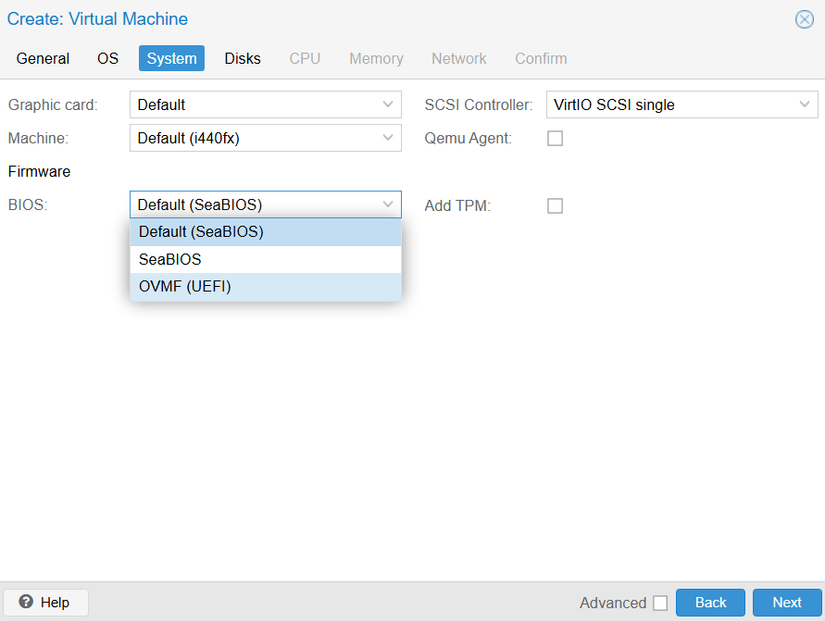
Issue 1: UEFI won’t boot
- When creating a Windows Server 2022 VM, I selected OVMF (UEFI) by default → but the Windows ISO wouldn’t boot.
- Fix: switch to SeaBIOS → Windows boots normally.
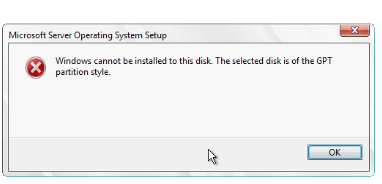
Issue 2: GPT vs MBR in Autounattended
- In Autounattended.xml, there’s a step to format the disk.
- If you boot with BIOS (SeaBIOS), make sure you choose the right GPT or MBR.
- I missed that at first, so Windows couldn’t see a disk to install to.
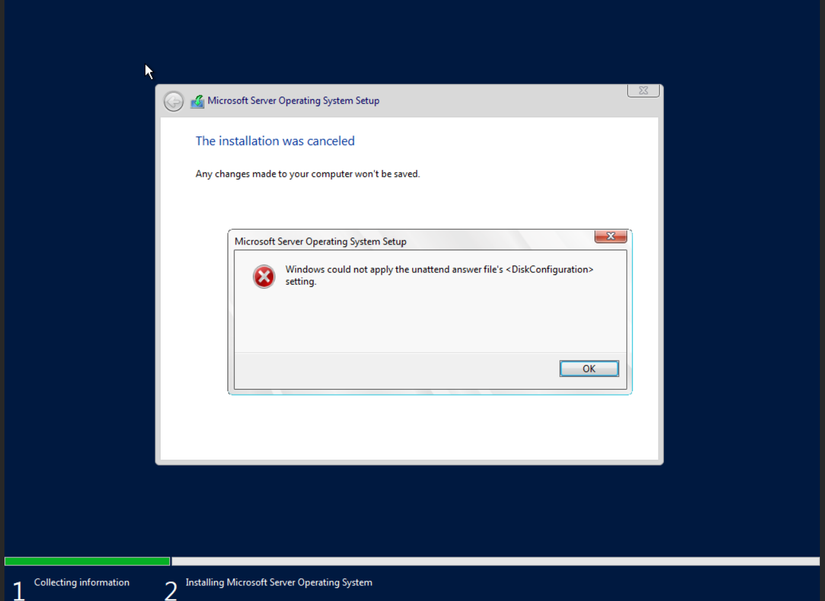
Issue 3: XML syntax errors
- Autounattended is very easy to break with tiny syntax mistakes.
- I once forgot exactly one line:
<Active>true</Active> - Result: the System Reserved partition wasn’t active, so Windows wouldn’t boot.
4. Result
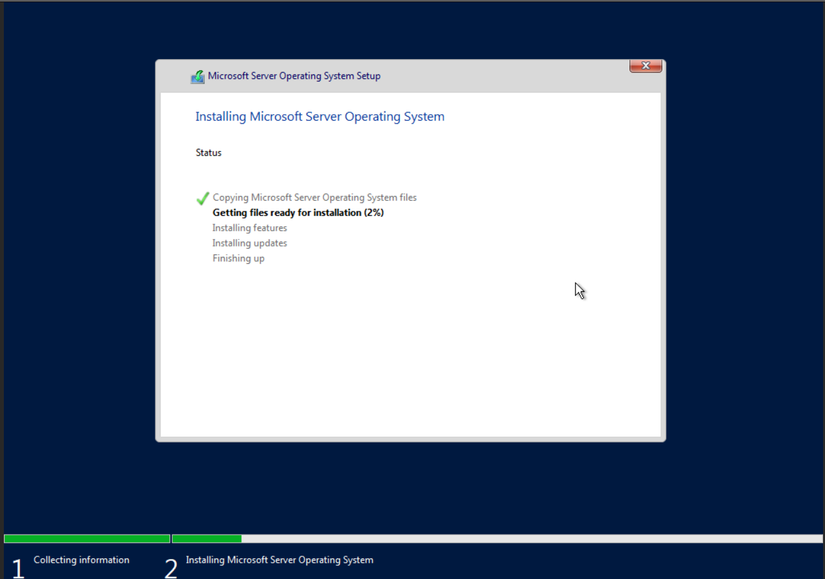
- After struggling through 8 ISO generations, the 8th one finally worked.
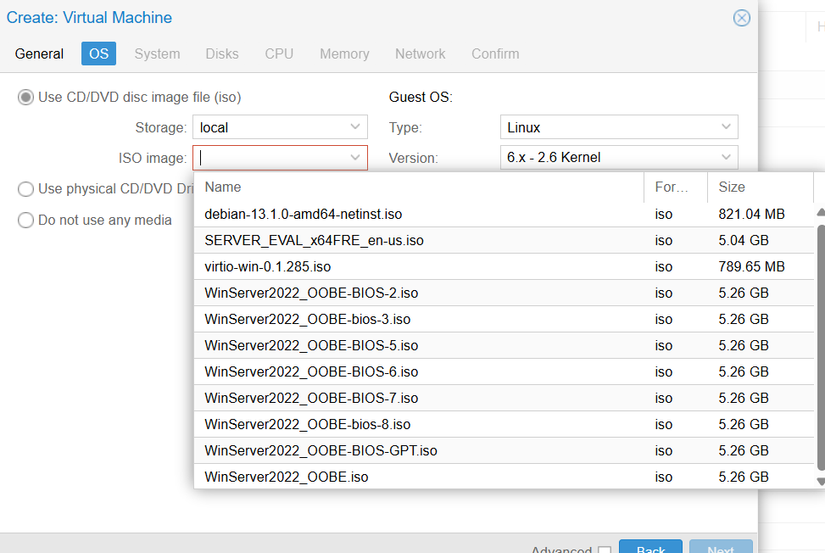
- Now just mount the ISO in Proxmox and kick back while Windows installs.
Summary
- BIOS mode: SeaBIOS boots Windows more easily than OVMF.
- Partition style: choose the right GPT/MBR in Autounattended.
- XML syntax: one wrong line like
<Active>true</Active>and it’s broken. - Result: one “automated” ISO → quick Windows Server 2022 install in Proxmox.

Comments
Join the conversation
Leave a comment
No comments yet
Be the first to share your thoughts!